

If you’ve ever built a Canvas App and felt the classic attachment control looks outdated, limited, and hard to style… you’re not alone.
To solve that, I’ve built a PCF component called Modern Attachment Control – a React + Fluent UI–based file upload experience designed specifically for Power Apps Canvas Apps.
It gives makers a modern, configurable, and powerful way to handle file uploads – with better UX and clean, structured outputs that are easy to pass into Power Automate, Dataverse, or SharePoint.
What is Modern Attachment Control?
Modern Attachment Control is a Power Apps Component Framework (PCF) custom control that replaces the standard attachment control with:
- A modern Fluent UI design
- Support for multiple files
- Built-in validation and error handling
- Clean Base64 + metadata output in JSON
It’s built with:
- Framework: Power Apps Component Framework
- Language: TypeScript
- UI Library: React + @fluentui/react
- Build Tools: npm, pcf-scripts, webpack
And the best part? You can drop it into your Canvas App, configure it from the UI, and start using it—no code changes required.
How It Looks
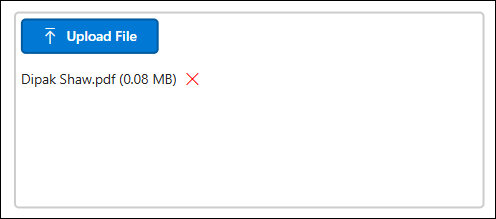
Main Upload UI
Validation & Error Message Bar

Power Apps Property Panel

Key Features
1. Smarter File Management
Forget the bare-bones file picker. Modern Attachment Control gives you:
- Multi-file upload
Allow users to upload multiple files at once, with a configurable max files limit. - Base64 conversion built-in
Every selected file is automatically read and converted into Base64, ready for:- Power Automate flows
- Dataverse file columns
- SharePoint document libraries
- External APIs
- File list with details
Show users which files they’ve attached:- File name
- File size (displayed in MB)
- Remove before submit
Each file entry includes a remove option so users can clean up their attachments before submitting.
2. Robust Validation (So You Don’t Have to Rebuild It)
Modern Attachment Control handles the boring but critical parts of file handling:
- File type restriction
Limit uploads to specific extensions (e.g., pdf, docx, xlsx) or patterns like image. - Max file size
Set a maximum size (in MB) per file. Anything over that limit is rejected with a clear message. - Max file count
Control how many files can be uploaded in a single interaction. - Duplicate prevention
Prevent users from adding the same file twice by mistake. - Clear user feedback
Validation errors are shown through a Fluent UI MessageBar, so users instantly know what went wrong.
Validation in Action

3. Highly Customizable Look & Feel
This control is maker-friendly. You can style it right inside Power Apps Studio:
- Button configuration
- Label text (e.g., Attach documents, Upload receipts, Add files)
- Fluent UI Icon (paperclip, upload, folder, etc.)
- Fill color, border color, font color
- Border radius (sharp or rounded corners)
- Visual states
- Hover
- Pressed
- Disabled
- Sizing & layout
- Small / Medium / Large size options
- Flexible alignment within containers
- User feedback
- Loading spinner while files are being processed
- Inline error messages for validation issues
4. Deep Power Apps Integration
This is where it becomes a serious upgrade over the classic control.
Structured JSON Output
The control exposes a structured JSON object (for example via an attachedFiles property), where each file includes:
- FileName – friendly name, e.g., Payslip_Jan2025.pdf
- Type – file extension, e.g., pdf
- ContentType – MIME type, e.g., application/pdf
- Base64 – the file content in Base64 (without headers)
You can:
- Pass this JSON array directly into Power Automate
- Store it in Dataverse or SharePoint
- Forward it to external APIs for processing
5. Error Event Handling
When something goes wrong (e.g., a user drops a 25MB video into a 5MB limit control), the component triggers an OnError-style event, letting you:
- Show a custom notification
- Log the attempt into Dataverse
- Block form submission until the issue is fixed
6. Reset Behavior
You can reset the control programmatically from the Canvas app:
- After a successful form submission
- When a user cancels or resets the screen
This clears all attached files, keeping the experience clean and predictable.
How to Start Using Modern Attachment Control
- Import the Solution (.zip) – ideal for makers
- Clone the GitHub repo – ideal for developers and contributors
Option 1 – Import the Ready-Made Solution
- Download the solution zip:
- Go to Power Apps → Solutions.
- Click Import solution.
- Upload and import the .zip.
- Once imported, open your Canvas app and:
- Go to Insert → Get more components → Code (or custom components)
- Add Modern Attachment Control to your screen.
Option 2 – Use the GitHub Project (For Devs)
- Go to the GitHub repository:
🔗 pcf-modern-attachment-control
- Clone the repo:
git clone https://github.com/Dips97/pcf-modern-attachment-control.git
cd modern-attachment-control
npm install- Build the PCF:
npm run build- Push the PCF to Power Apps:
Use Power Apps CLI (pac) to add it into your solution or environment.
pac pcf push- Package the solution
cd Solutions

# Build Managed Solution (Recommended for Production)
dotnet build --configuration Release

# Build Unmanaged Solution (For Development/Testing)
dotnet build --configuration Debug
Locate the Zip Files: The generated solution files will be in the Solutions/bin/Release (managed) or Solutions/bin/Debug (unmanaged) folder.
This route is ideal if you want to:
- Extend capabilities
- Change UI structure
- Add new features (e.g., drag-and-drop, previews, localization)
Where This Control Fits Best (Use Cases)
You can drop this control into any Canvas App where file uploads matter:
- Employee Self-Service
Upload ID proofs, resumes, joining documents. - Expense/Travel Apps
Attach receipts, flight tickets, hotel invoices. - Field Work & Inspections
Upload inspection images, reports, PDFs from mobile devices. - Ticketing & Support
Add logs, screenshots, or documents as part of incident tickets.
Anywhere you’re relying on the default attachment control today, Modern Attachment Control can give your users a more polished, trustworthy experience.
Open for Feedback & Contributions
This control is not just a closed “black box” – it’s a community-friendly component:
On GitHub, users can:
- ⭐ Star and follow the project
- 🐛 Report issues and bugs
- 💡 Suggest enhancements
- 🔧 Submit pull requests (new features, themes, fixes)
You can also maintain a public Roadmap, for example:
- Drag-and-drop upload
- Image previews
- Localization support
- Preloading existing attachments from Dataverse/SharePoint
Conclusion
The Modern Attachment Control brings a modern, Fluent UI, and maker-friendly experience to file uploads in Power Apps Canvas apps:
- Better UX than the classic attachment control
- Strong, reusable validation
- Clean, structured JSON output (Base64 + metadata)
- Easy to drop into existing apps using a solution zip
- Open to developers via GitHub
If you’re building serious apps on Power Apps, your users shouldn’t have to settle for clunky uploads.
Discover more from Power Solution
Subscribe to get the latest posts sent to your email.